
Alfred 6 for Engineers: Give Your Local Dev Tools a Native Mac UI
Build a one-button log viewer, inspect JSON without leaving your editor, and decide which parts of your debugging session are worth remembering.


A worker stops consuming jobs. You know where its log lives. Or at least you knew yesterday, when the repository was in a different directory. Now you’re looking through shell history while the useful question goes unanswered: did the worker stop receiving messages, or did it stop acknowledging them?
That’s the kind of interruption I’d spend an Alfred workflow on. The interesting change in Alfred 6 is that a workflow can open a native Mac interface. You can give a familiar operation a button, show the evidence behind it, and send the engineer straight to the relevant file. Your existing CLI can keep doing the actual work.
Alfred runs on macOS 12 and later. The workflow examples below need the Alfred 6 Powerpack. The Gallery workflows are separate installs. If you use the free edition, you can still try the fallback-search setup later in the article.
Build a button that opens the right log
Let’s make a small workflow you can exercise end to end. Typing devlog will show one button. Pressing it will open a sample worker log in TextEdit. Keeping the example this small makes it easy to tell whether a failure belongs to the trigger, the interface, or the program that receives its output.
First, create a disposable log in Terminal:
mkdir -p "$HOME/Library/Logs/alfred-dev-demo"
printf '%s\n' 'worker ready; queue=emails pending=0' \
  >> "$HOME/Library/Logs/alfred-dev-demo/worker.log"
In Alfred Preferences, create a blank workflow. Connect a Keyword input to an Alfred UI object, then connect that object to a Run Script action. Set the keyword to devlog and its argument option to No Argument. In the UI object, give the Alfred UI file a name and click + to create its package. Use the … menu to open the package, then replace its ui.json with the following. The package setup follows Alfred’s Sound Board tutorial.
{
  "window": {
    "padding": 12,
    "root": {
      "type": "button",
      "text": "Open worker log",
      "events": [
        {
          "triggers": "actioned",
          "action": {
            "type": "json",
            "src": {
              "finish": { "args": ["worker.log"] }
            }
          }
        }
      ]
    }
  }
}
Set Run Script to /bin/zsh, choose with input as argv, and enter:
case "$1" in
  worker.log) logfile="$HOME/Library/Logs/alfred-dev-demo/worker.log" ;;
  *) print -u2 "Unknown log selection"; exit 2 ;;
esac

if [[ ! -r "$logfile" ]]; then
  print -u2 "Cannot read $logfile"
  exit 1
fi

/usr/bin/open -a TextEdit "$logfile"
Invoke Alfred, type devlog, press Return, and choose Open worker log. The expected result is a TextEdit window containing the worker ready line. If the button appears but the file stays closed, open the workflow debugger and inspect the Run Script input. It should be the literal string worker.log. Alfred’s finish action closes this UI instance and passes its arguments to the connected workflow object. The Run Script action receives the first argument as $1.
There’s a design choice in those few lines. The button returns a stable identifier. The script owns the machine-specific location. Moving the checkout, switching editors, or redirecting logs to a different directory requires changing one place. It also gives you a straightforward test: pass an unknown identifier and check that the script exits before opening anything.
Grow it into a local status panel
Once a second service gets its own button, the next useful question is which button to press. Imagine opening the panel and seeing that the API is listening, the database accepted a query, and the worker’s last heartbeat was twelve minutes ago. Now the UI has earned the space it takes up.
This panel is a proposed extension of the example. Start by making your existing status command produce a small, explicit contract. Here’s a sample record:
{
  "service": "worker",
  "observation": "heartbeat_stale",
  "observed_at": "2026-11-23T09:42:00Z",
  "last_heartbeat_at": "2026-11-23T09:30:00Z",
  "log_id": "worker.log"
}
Two timestamps matter here. If the status command itself last ran twelve minutes ago, the panel has stale data. If it ran just now and found a twelve-minute-old heartbeat, it has fresh evidence of a potentially stalled worker. A single red dot makes those cases look identical. Give the row a line of text such as “Checked at 09:42 UTC · last heartbeat 09:30 UTC.” If a probe times out, display “unknown” and retain the time of the last successful observation.
Use the components and events in the Alfred UI toolkit to render the records and return the selected log ID through the same finish action. Give slow probes a timeout. If you add periodic refresh, pick an interval longer than a normal probe cycle and avoid overlapping requests. A read-only first version also makes failure testing cheap: stop a local worker, remove its log, and close the panel during a refresh. Each case should produce an understandable result before you consider adding a restart button.
Inspect a payload without changing the evidence
Sometimes the best workflow is one somebody else maintains. Install the Alfred Team’s Text Transformer, select a JSON payload in your editor, and invoke the workflow through Universal Actions. Alternatively, copy the payload, type transform in Alfred, and press Return. With no explicit input, the workflow reads the clipboard.
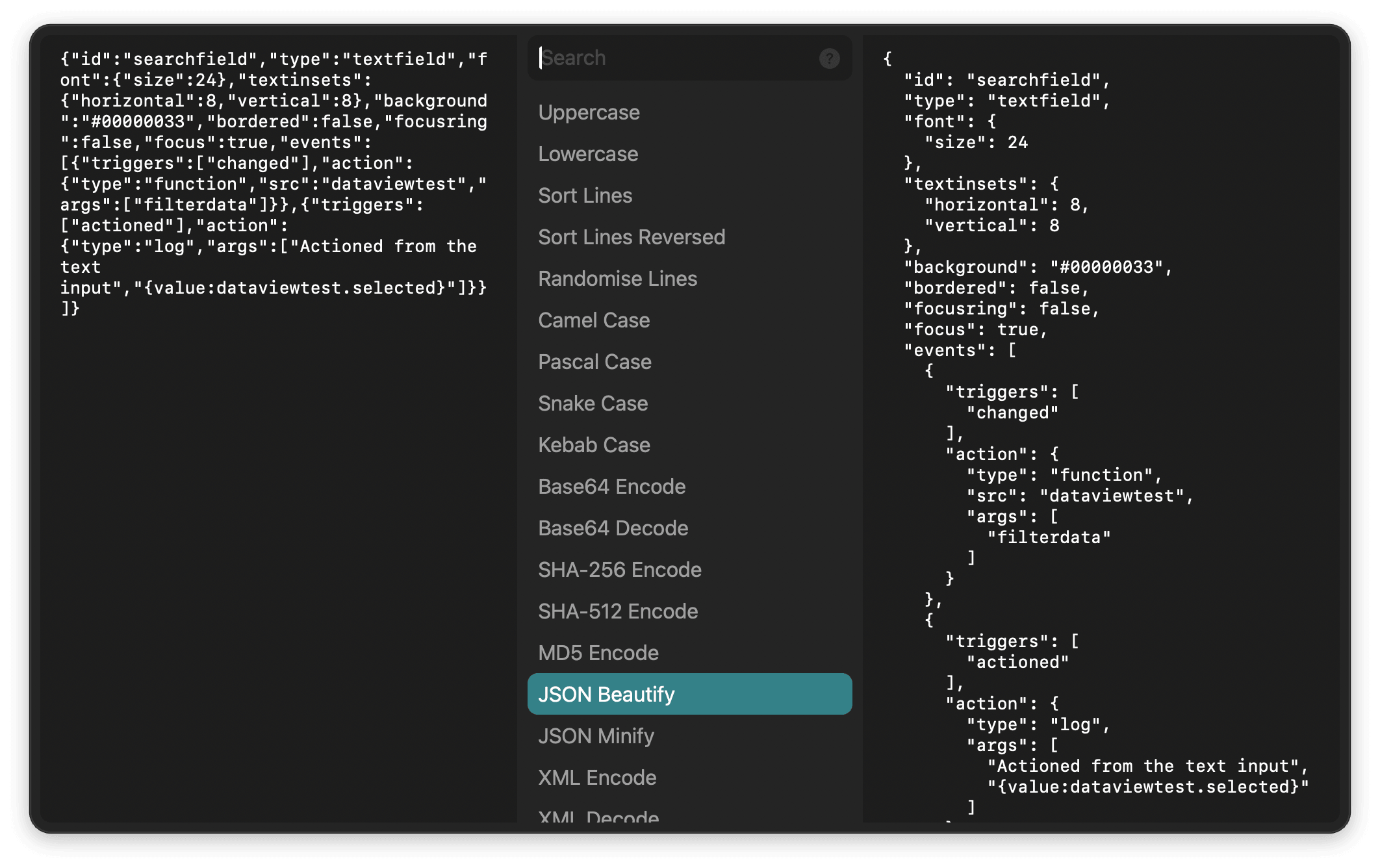
Official screenshot from the Alfred Team. The side-by-side preview lets you inspect the result before copying it.
Try JSON Beautify on this one-line event:
{"job":"receipt","attempt":3,"retryable":"false","delay_ms":0}
Look closely at retryable. The producer sent the string "false". A JavaScript consumer that checks if (event.retryable) will take the retry branch because that string is nonempty. Formatting helps you spot the quotes. Converting the value by hand before sharing the payload would erase the most useful piece of evidence. Keep the original for a regression fixture and copy the formatted view into the issue.
Formatting can also change whitespace that matters to a byte-level signature. A pretty-printed copy is fine for a human review. To reproduce a webhook signature check, feed the verifier the original request bytes.
Remember the query, the copied value, or the destination
Alfred has three features that solve different moments in the same investigation. Suppose you looked up a worker timeout yesterday, copied a request ID this morning, and now want to search the project documentation.
| What you remember | What to use | What to do |
|---|---|---|
| A word from yesterday’s Alfred input | Query History | Enable it under Features → Query History, then type ! followed by the remembered term. Up Arrow recalls previous input. |
| Part of the request ID you copied | Clipboard History | Enable history, open the viewer, search for the fragment, and press Return to paste the match into the frontmost app. |
| Where the answer should live | Fallback Searches | Under Features → Default Results → Fallback Results, add a documentation search and put it ahead of destinations you use less often. |
Query History starts disabled. When enabled in memory, it can hold up to 200 queries and clears when Alfred restarts. Disk persistence is optional. The Clipboard Viewer’s 30 refers to recent entries visible at once. Clipboard retention is a separate setting. On a work Mac I’d start with memory-only queries, set an explicit clipboard retention period, and exclude apps used for credentials before enabling clipboard capture.
Fallback customization is available in the free edition. Put a public documentation search first if your usual queries are framework or API names. For private ticket IDs and service names, choose an internal destination and check the selected result before pressing Return.
Search the existing tools before writing another script
Alfred 6 adds search across its catalog of more than 230 Automation Tasks. The tasks themselves predate v6. For a workflow that turns the current Safari page into a Markdown link, first look for tasks that retrieve the active tab’s title and URL. Combine those values into [title](URL), then send the result to the clipboard. Try it on a page whose title contains square brackets before relying on it for release notes. A plausible-looking Markdown string can still render as a broken link.
Two other Gallery workflows illustrate when a richer interface pays off:
- Choosing an icon. Open the SF Symbols Browser with
sfs, search for a symbol, and press Return to copy its name. Paste it into SwiftUI, for exampleImage(systemName: "heart.circle.fill"). Check the symbol’s availability against your deployment target while its detail view is open. - Reviewing an error. Brain Outsourcing supports local and hosted models. Configure the endpoint, model ID, and credentials required by your chosen service. For a sanitized error sample, try “List two explanations consistent with this log, and one observation that would distinguish them.” The result gives you something to test. A hosted request sends the submitted text to the configured provider and may incur separate charges.
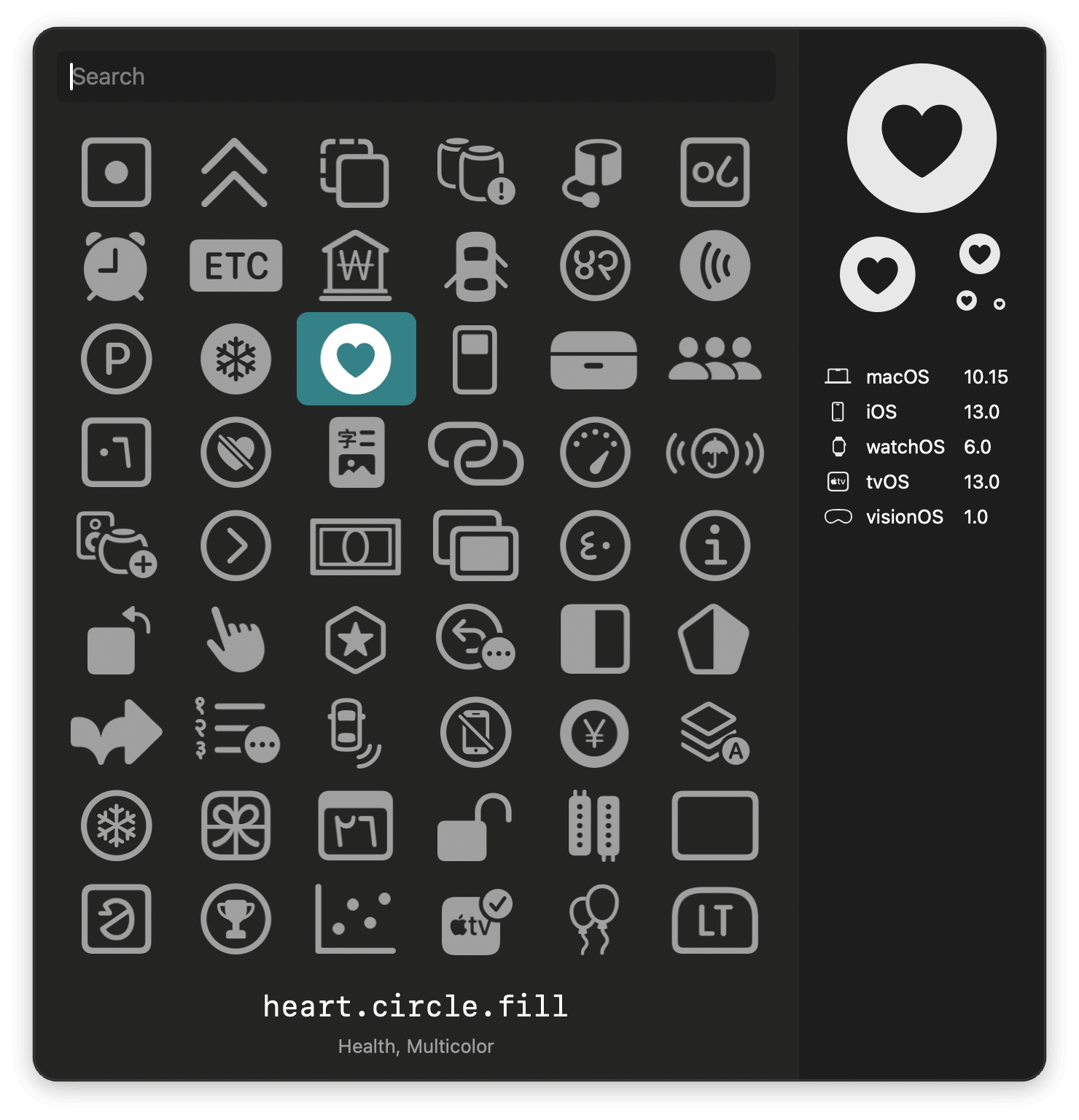
Official screenshot from the Alfred Team. A visual picker is particularly useful when you recognize an icon but can’t recall its system name.
Upgrade with one familiar workflow in hand
If you’re coming from an earlier version, the migration assistant can archive your existing preferences as a tar.gz before migration. Check your Powerpack upgrade eligibility, back up the preferences Alfred detects, migrate them, and follow the permission prompts for the features you use. After the restart, exercise one familiar hotkey all the way through to its output. Seeing a workflow in Preferences confirms that it was imported. Pasting into your editor or opening the expected file checks the part you actually depend on.
I’d start with the smallest interruption I could name. For the worker example, success is being able to go from “jobs are backing up” to the relevant log without remembering a path. After a week, the next improvement should be apparent from use. If you always open the same log, the button is enough. If you keep opening three logs to find the right one, build the status panel.